
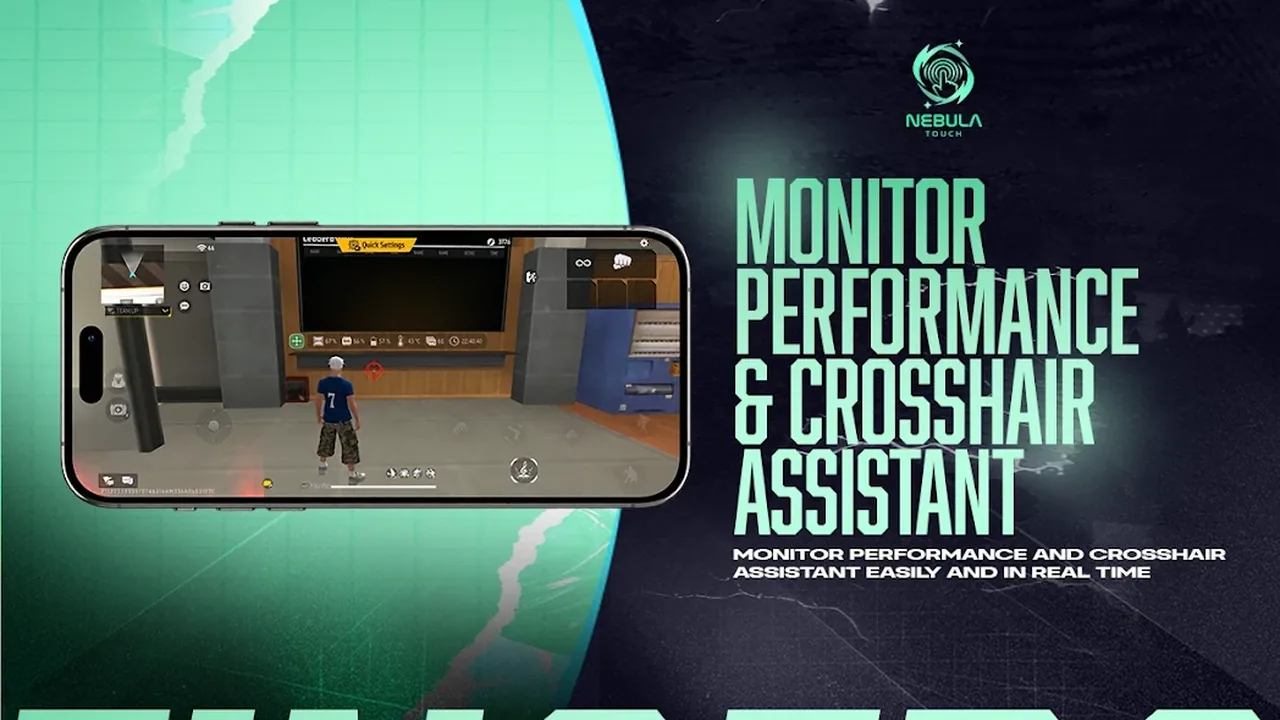

Monitoring in Nebula Touch APK download puts three numbers on screen while you play: FPS, ping, and temperature. FPS tells you how smooth the game renders. Ping tells you how fast your actions reach the server. Temperature tells you whether the phone is throttling. A bad match is usually one of the three, and the panel shows which.
Read them in context. FPS drops during heavy fights point to graphics settings or heat. Ping spikes at match start point to connection, not aim. Temperature climbing past the phone's comfort zone explains FPS drops that arrive late in long sessions, and the fix is a break, not a setting.
Monitoring arrived in the latest update alongside the crosshair assistant, and both live in one panel. The FPS guide goes deeper on frame rate, and the ping guide covers connection and heat.