
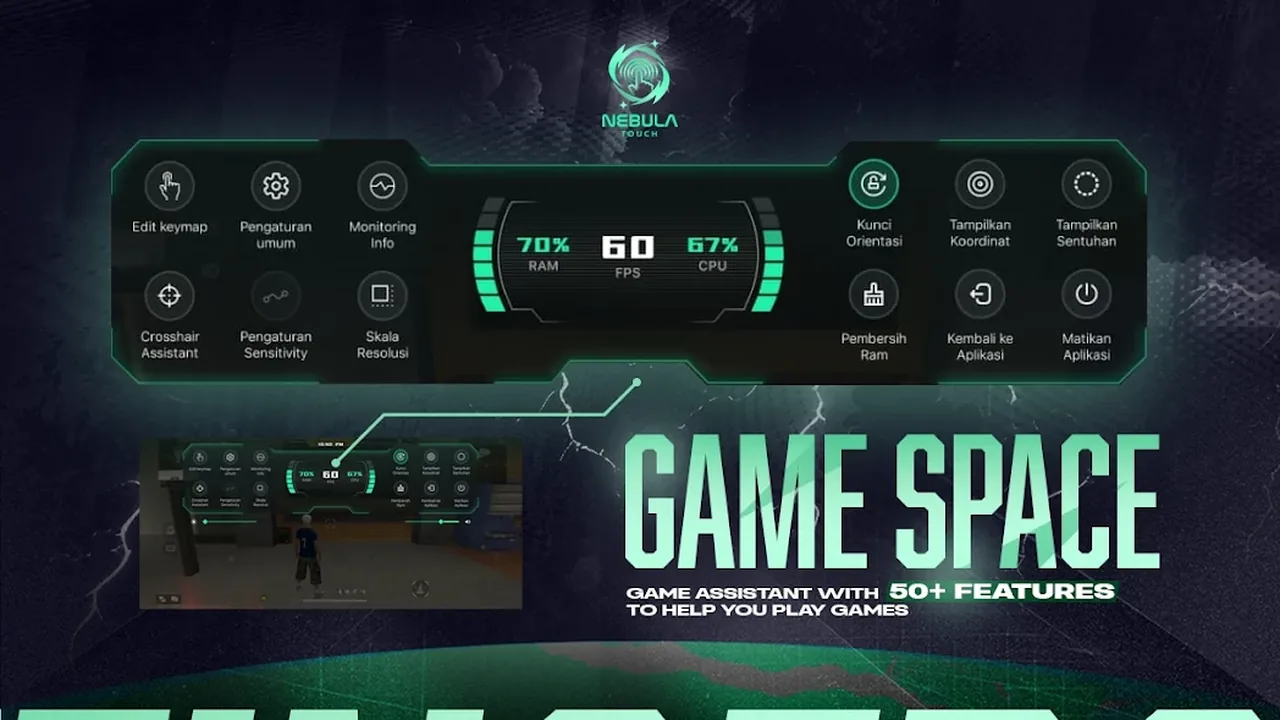

First setup in Nebula Touch APK is about permissions. Open the app, grant the overlay and accessibility permissions it asks for, and switch battery optimisation off for Nebula Touch so the system cannot close it mid match. These three steps decide whether the tool works at all, so do them before touching any sensitivity value.
Next, add your game. Game specific mapping means each title gets its own profile, so pick the game you play most, let the tool map it, and create a profile with the default sensitivity first. Play one practice match on defaults before changing anything: you need a baseline to judge every later change against.
Finally, turn on the monitoring panel and the crosshair assistant for that first practice match, so you can see FPS, ping, and temperature while you test. The sensitivity guide explains X and Y scaling, and the ADB and Shizuku guide covers the deeper connection for advanced features.