
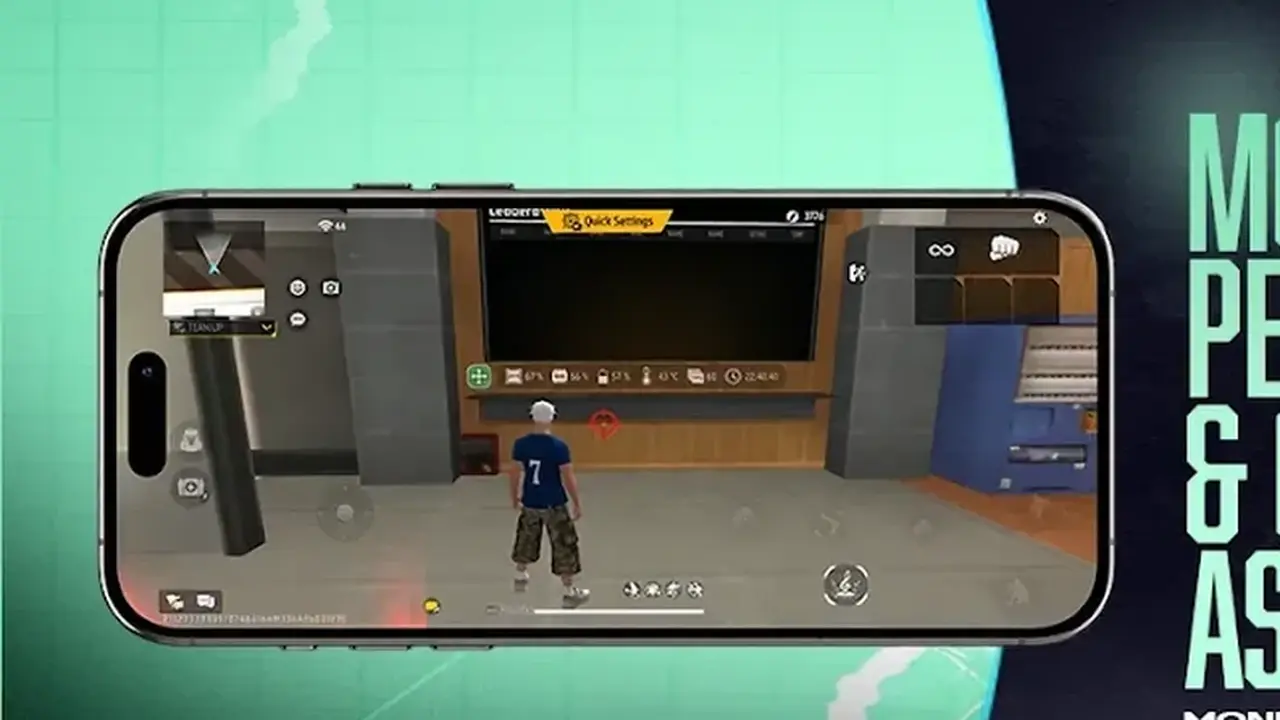

ADB and Shizuku in Nebula Touch download unlock the deeper input features. ADB is the standard Android debug bridge, and Shizuku lets apps use ADB level permissions without a computer attached every time. No root is needed at any point, and the basic features work without this step, so treat it as an upgrade, not a barrier.
The computer route takes a few minutes: install the platform tools, connect the phone by cable, enable USB debugging, and run the ADB command the Shizuku app shows you. The wireless route on newer Android versions uses wireless debugging instead of a cable, and Shizuku guides that path on screen. Either way, the phone needs the connection re enabled after a restart, from the Shizuku app.
Once the connection is live, open Nebula Touch and confirm the advanced features unlock. If they do not, re open Shizuku and check the service is running before changing anything in the tool. The no root guide explains why root is never needed, and the setup guide covers the basic first run.