
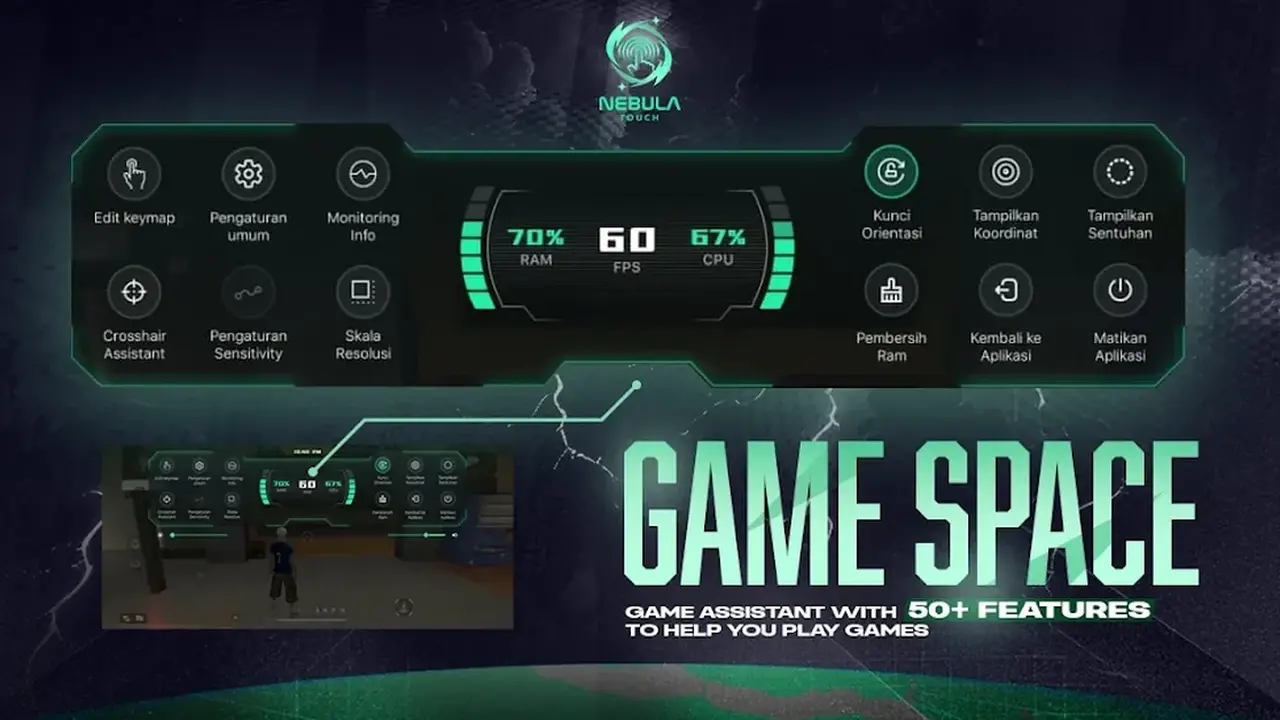

In game settings in Nebula Touch APK download's world are the game's own sensitivity sliders: one value per game, built for the average player. Nebula Touch sits underneath, reshaping touch input before the game sees it, with independent X and Y scaling, per game profiles, and triggers the game never offers. The two stack: the tool shapes the input, the game shapes the result.
The practical split is simple. Use the game settings for the broad feel and the tool for the fine detail: set the game to a neutral middle value, then tune X and Y in the tool until aim feels right. Changing both at once teaches nothing, so pick one layer per testing session.
One warning: a game update can change its own sensitivity behaviour, which makes a tuned profile feel wrong overnight. When that happens, check the game settings first, then the profile. The sensitivity guide covers tuning, and the stability guide covers the fix checklist.